Collecting Syslog Messages from Device's Web Interface
Instead of configuring the device to send syslog messages, you can configure Syslog Viewer to connect to the device's Web interface and collect the messages from there.
This method is useful when Syslog Viewer is not routable from the device. For example, when the device is located behind NAT.
Syslog Viewer can connect to the device's Web interface using the device's IP address or hostname (if applicable). By default, Syslog Viewer connects over HTTPS (port 443), but you can change this to HTTP (port 80).
|
●
|
This syslog collection method is not recommended and especially not suitable when the device sends a high volume of syslog messages. The recommended method is described in Configuring Devices to Send Syslog Messages. |
|
●
|
Collecting syslog messages from the Web interface is not supported by AudioCodes MP-1xx devices. |
|
●
|
No device configuration is required for this connection method. |
|
➢
|
To connect Syslog Viewer to device's Web interface: |
|
1.
|
On the toolbar, click the Connect To  icon; the following dialog box appears: icon; the following dialog box appears: |
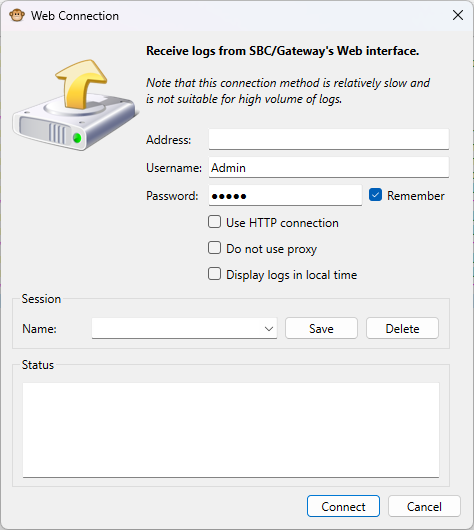
The 'Do not use proxy' check box is reserved for future implementation.
|
2.
|
In the 'Address' field, enter the device's address (IP address or FQDN). |
|
3.
|
In the 'Username' and 'Password' fields, enter the device's login credentials. |
|
4.
|
If you want Syslog Viewer to remember your settings, select the 'Remember' check box. |
|
5.
|
If you want to connect over HTTP instead of HTTPS, select the 'Use HTTP connection' check box. |
|
6.
|
If you want logs displayed in local time, select the 'Display logs in local time' check box. |
|
7.
|
If you want to save this specific connection setting for future use, under the Session group, in the 'Name' field, enter any easily identifiable name, and then click Save. The next time you want to use this connection setting, simply choose the name from the 'Name' drop-down list. |
|
8.
|
Click Connect; Syslog Viewer connects to the device's Web interface and the syslog window displays "connected to <device's address>". Syslog Viewer can now collect syslog messages from the device. |
To disconnect Syslog Viewer from the device, on the toolbar, click the Disconnect From  icon. The syslog window displays "disconnected by user".